What is Reshade for Assetto Corsa ?
Reshade is a post-processing layer that is independent of the game itself, applied on top of everything that CSP and Pure have already set up. It’s this layer that adds the finishing touches: contrast, grain, sharpness and colour tones. Unlike CSP and Pure, ReShade is not specific to Assetto Corsa nor is it linked to the Content Manager it is a generic tool used by thousands of games, to be installed last.
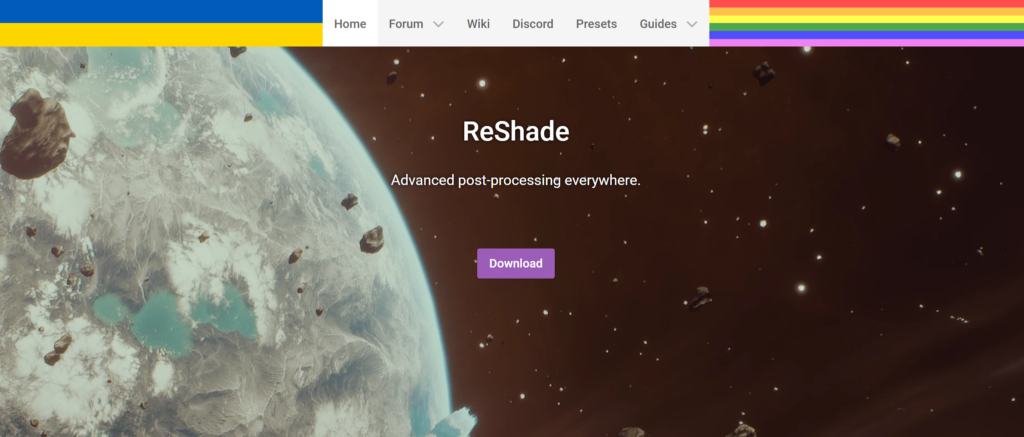
Step 1: Download ReShade for Assetto Corsa
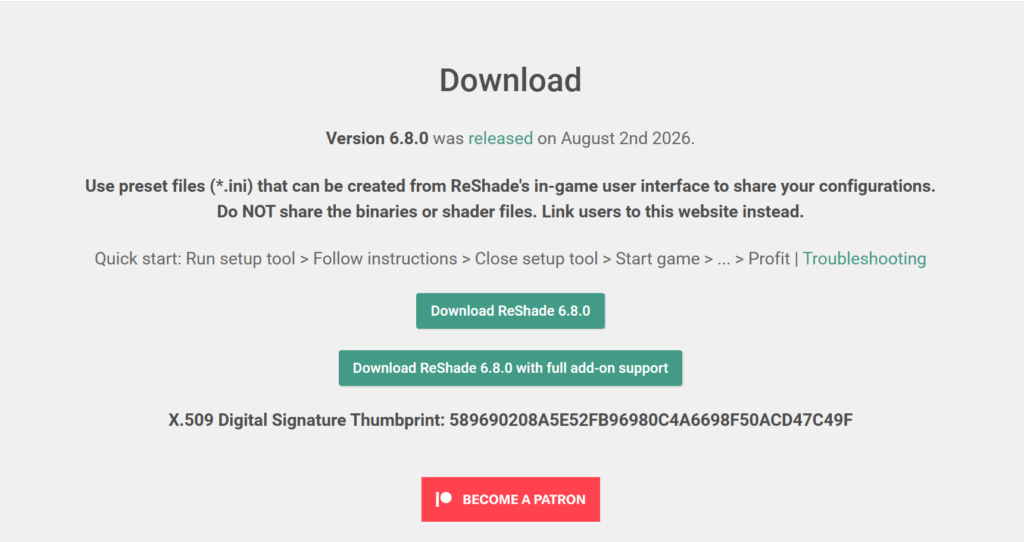
- Go to reshade.me and download the latest version available (the .exe file).
- Once downloaded, right-click on the file and select run as administrator — otherwise, the installer may not be able to write the necessary files to the game folder.
Step 2: Select the correct game executable
This is the stage where most errors occur, so please proceed with care:
In the installer, click browse (or the folder icon) to navigate manually, rather than selecting from the list of automatically detected games.
Navigate to the folder C:\Program Files (x86)\Steam\steam apps\common\assettocorsa.
Select the acs.exe file.
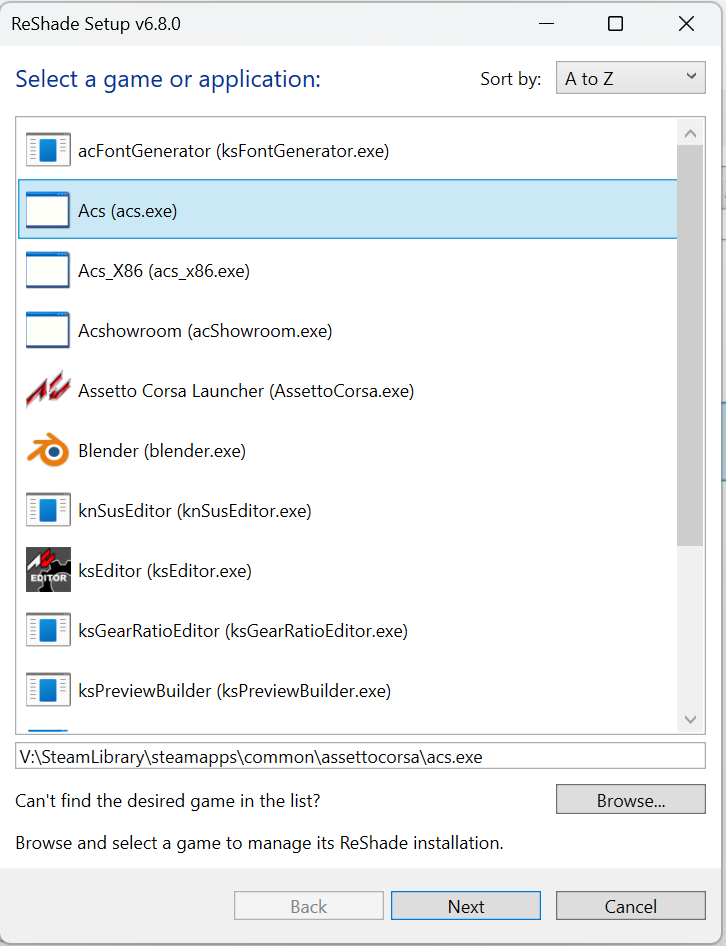
- Under no circumstances should you select AssettoCorsa.exe (this is the launcher, not the game itself).
- Nor should you select acs_x86.exe (a 32-bit version that is not the one used with the CSP).
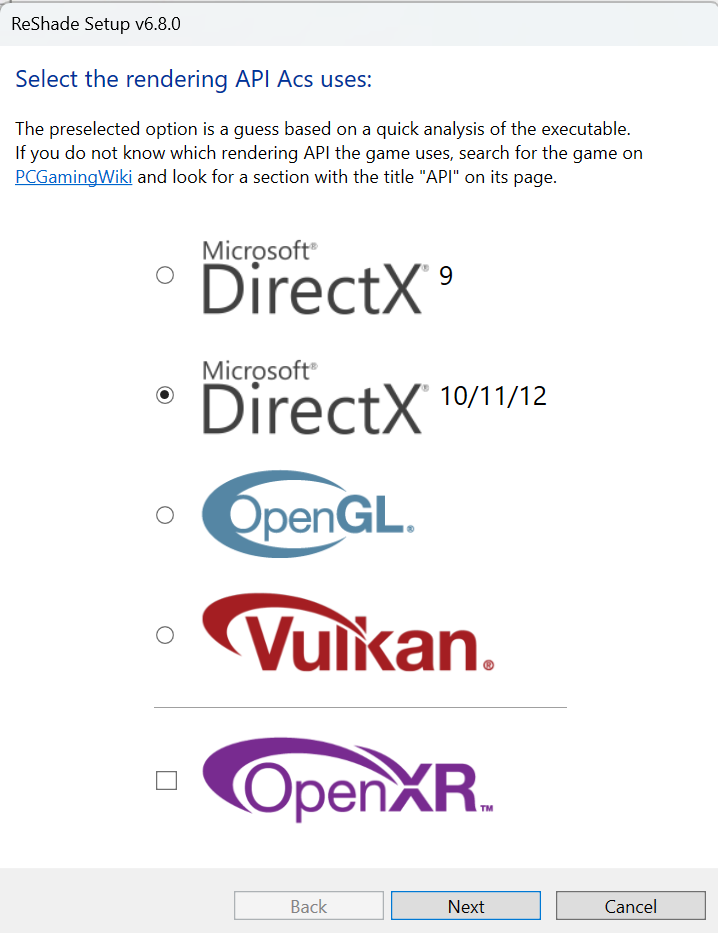
Click “OK”, then select the Direct3D 10/11/12 graphics API when prompted by the installer.
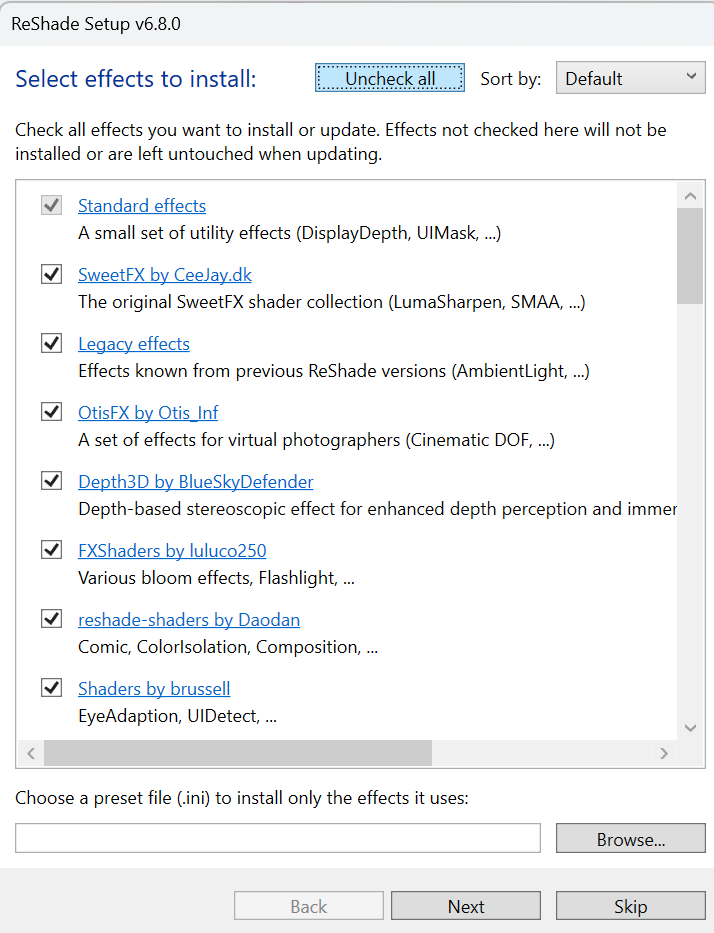
Step 3: Choose the effects packs
- The installer displays a list of shader packs (effects) to tick.
- Tick all the packs on offer (select all), rather than choosing just a few: the preset provided with this site’s graphics pack relies on several different libraries, so it’s best to have everything available straight away during installation rather than having to run the installer again later.
- Confirm and let the installation complete.
Step 4: Check that the ReShade overlay is displayed in-game
- Launch Assetto Corsa via the Content Manager and hit the track in any car.
- Press the Home key on your keyboard — this is the default key assigned by ReShade to open its overlay.
- A window should appear on screen, listing the installed effects: this confirms that ReShade is working correctly.
- Close the overlay by pressing Home again. There’s nothing else to adjust here: the effects will be configured automatically by the preset included with the graphics pack, which you can load by following the tutorial on installing a graphics pack.
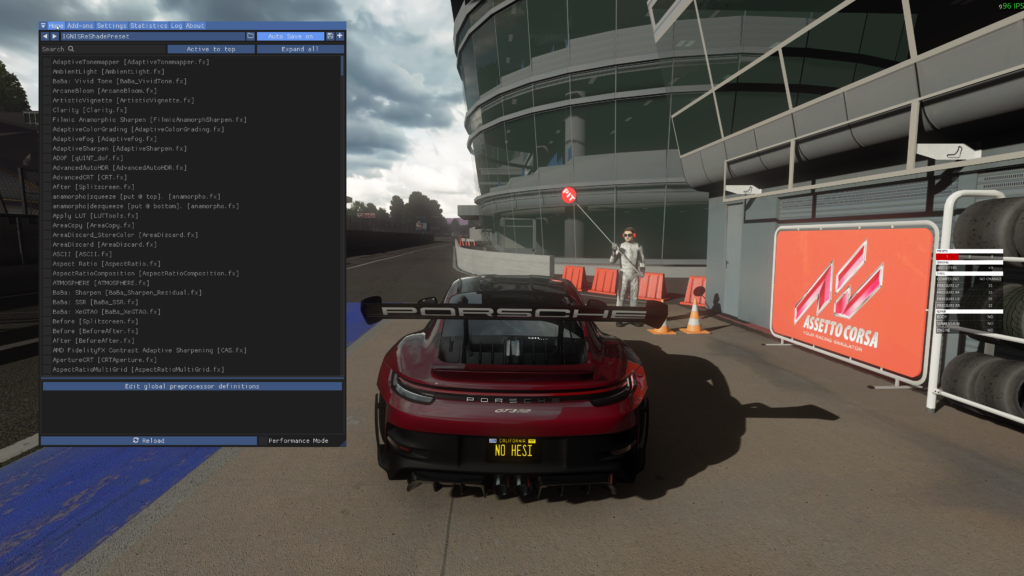
If the overlay doesn’t appear at all when you press Home: go to Content Manager > Settings > Custom Shaders Patch > General, enable the “Flip dxgi.dll for win10” option, then restart the game. If the problem persists, also check in Content Manager > Settings > CM Settings > Drive that the “Force 32-bit mode” option is unpicked.
Final tips
Installing ReShade last (after Content Manager, the CSP and Pure) prevents most display conflicts.
The graphics pack on this site provides its own ReShade preset (.ini file) to be loaded via the overlay once installation is complete.
Discover others Assetto Share’s tutorials :