
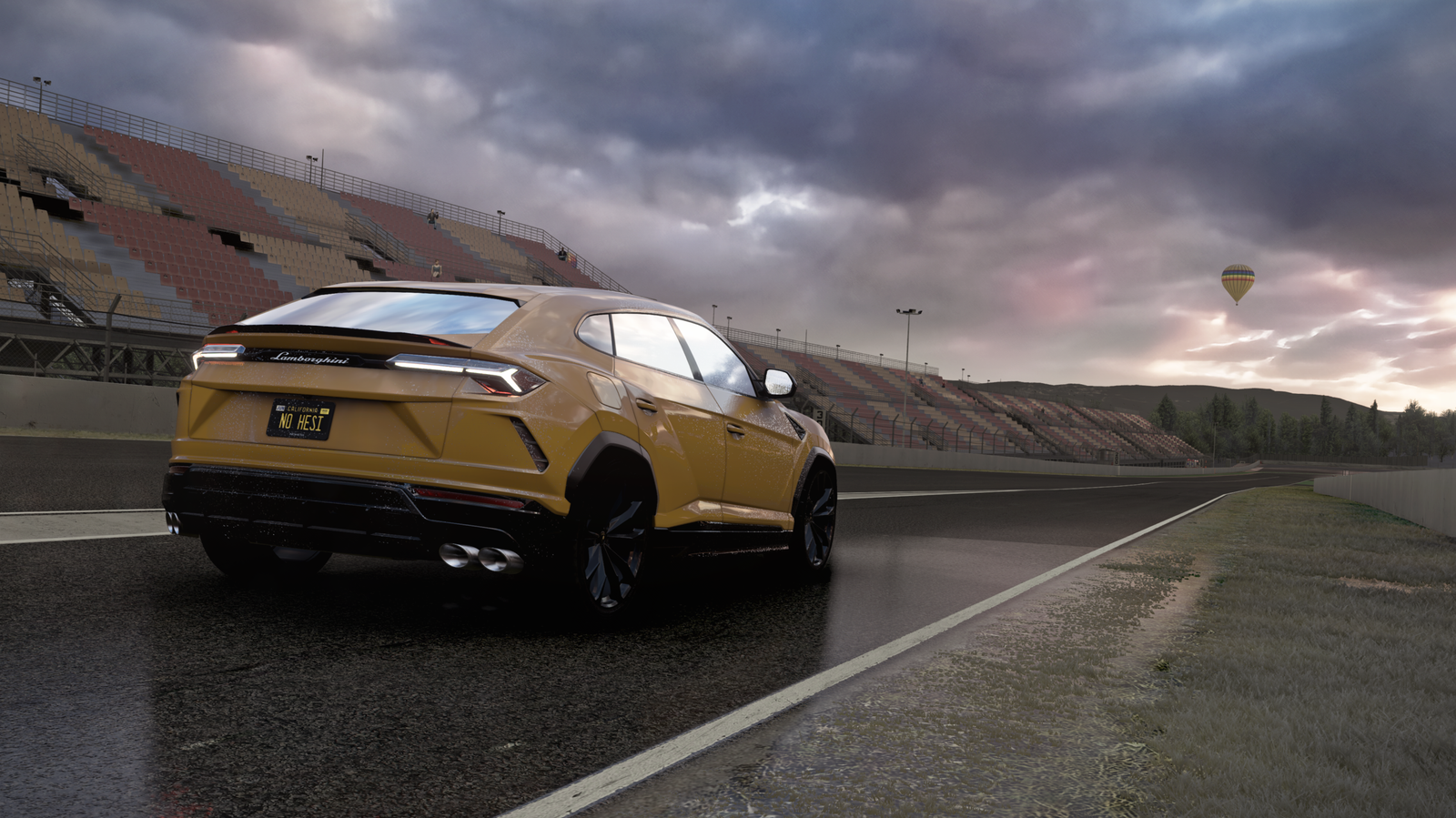
Free Realistics Assetto Corsa Graphics: How to Install ? However, this guide assumes that Content Manager, CSP, Pure and ReShade are already installed (see previous tutorials).
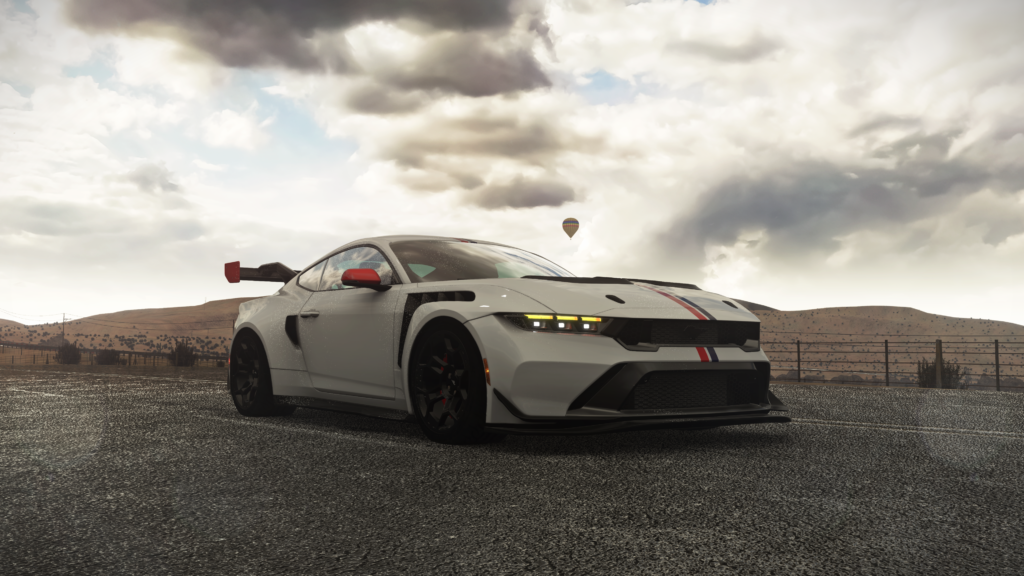
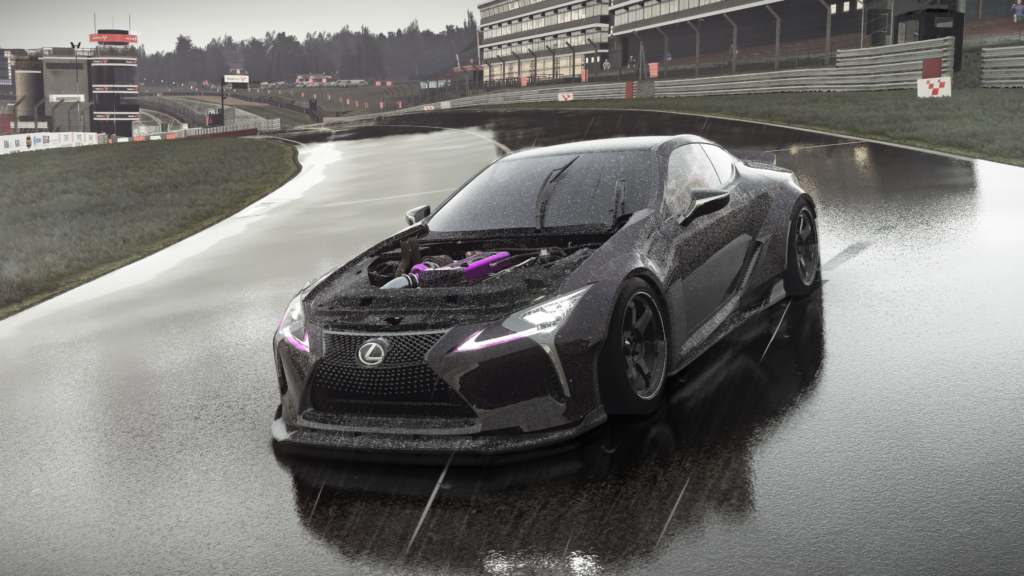
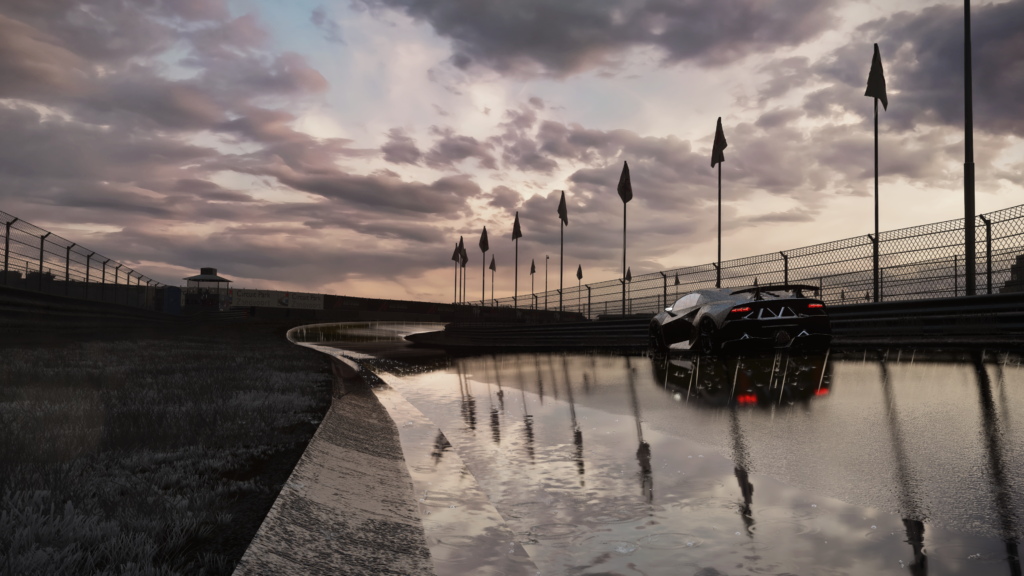
The recommended video settings and CSP parameters are provided separately via dedicated links. This is an installation tutorial for Ignis Umbra, the free Assetto Corsa Graphic Pack by Ignis Graphics, which can be downloaded here:
Install the files of your free realistics Assetto Corsa Graphics
This free Assetto Corsa graphic pack is already organised to match the Assetto Corsa folder structure exactly. All you need to do is:
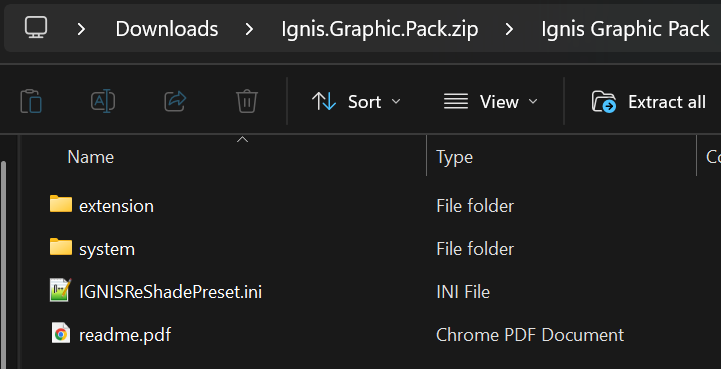
Unzip the downloaded file.
Open the ‘Ignis Graphic Pack folder.
Select all its contents except for ‘readme.PDF ( the extension and system folders, as well as ‘IGNISReShadePreset.initial).
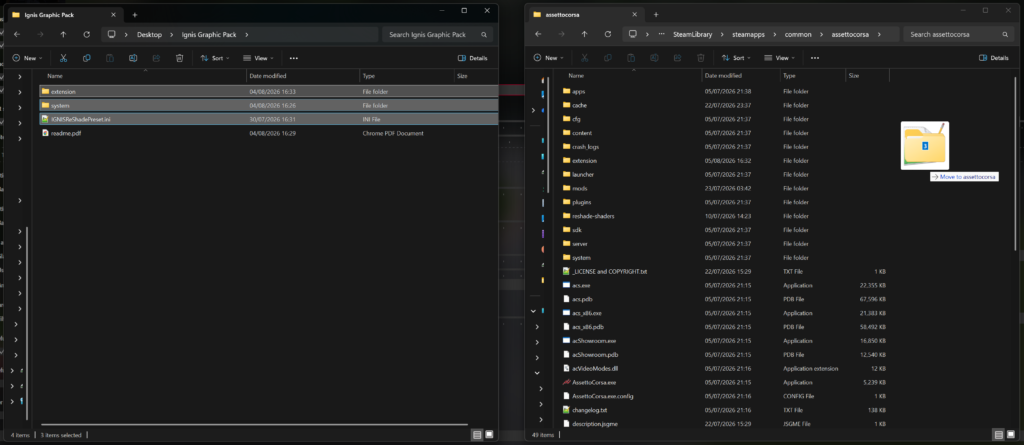
Drag and drop (or copy and paste) this selection directly into the Assetto Corsa installation folder (Steam\steam apps\common\assettocorsa).
If Windows asks whether to merge or replace existing files, agree.
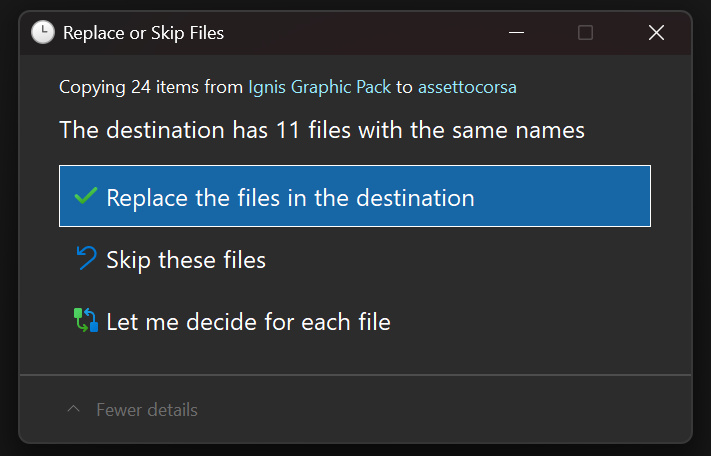
This copy automatically places: the PPfilter and the Pure script in system>cfg>ppfilters, the Pure configuration and script settings in extension\config-ext\Pure LCS\, and the ReShade preset in the game’s root directory.
How to activate your free Assetto Corsa Graphics
In Content Manager:
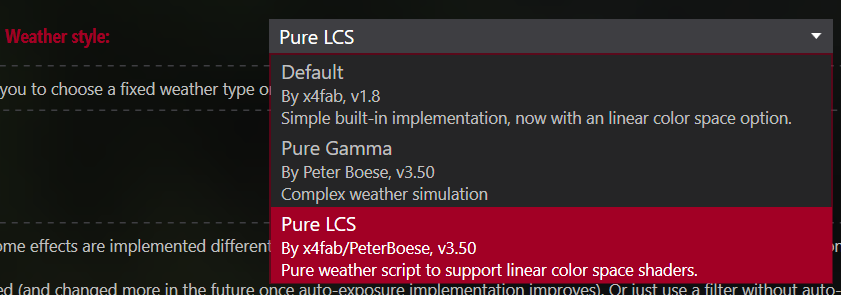
Select Pure LCS in the CSP settings: Settings > Custom Shaders Patch > Graphics > Weather FX. Then, under weather Style, select Pure LCS.
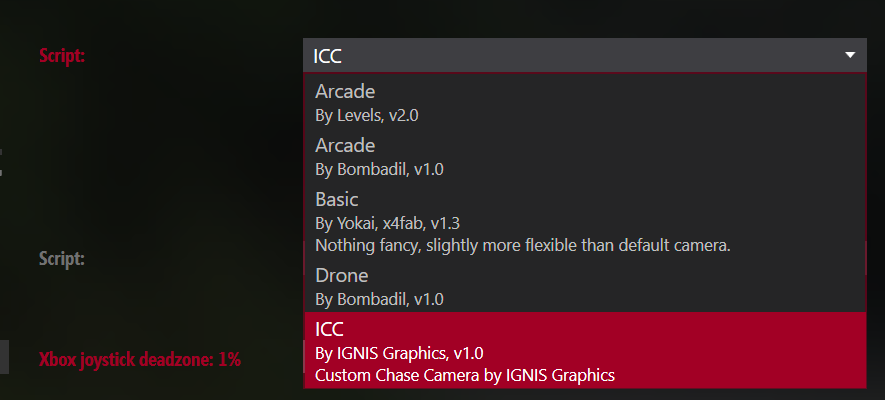
Chase camera: in Content Manager, go to Settings > Assetto Corsa > Chaser Camera, enable the extension, then select ICC from the list of scripts (display name of the IGNIS_chase_camera folder).
Neck FX: in Content Manager, go to Settings > Custom Shaders Patch > NeckFX, enable the option, then select INFX from the list of scripts (display name of the IGNIS_neck_fx folder).

The CSP and video settings (which are usually already installed); if not, you can download them by clicking here.
In Assetto Corsa (in-game):
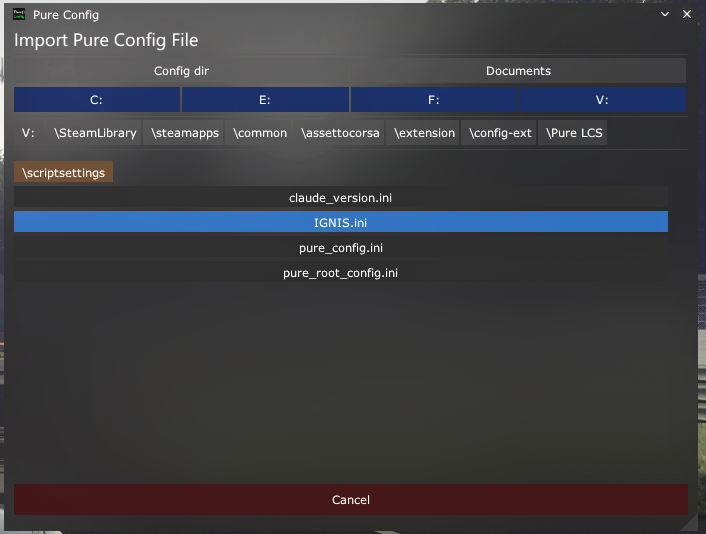
Pure Config: Open the Pure Config app whilst in-game, click on import, then select ‘IGNIS.initial and click on save; you can then close Pure Config.
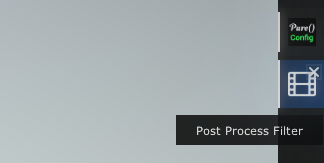
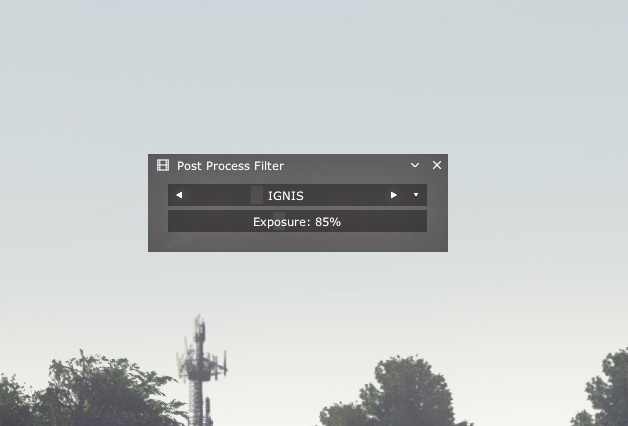
PP filter: First, open the Post Process Filter app, select IGNIS, then close the app.
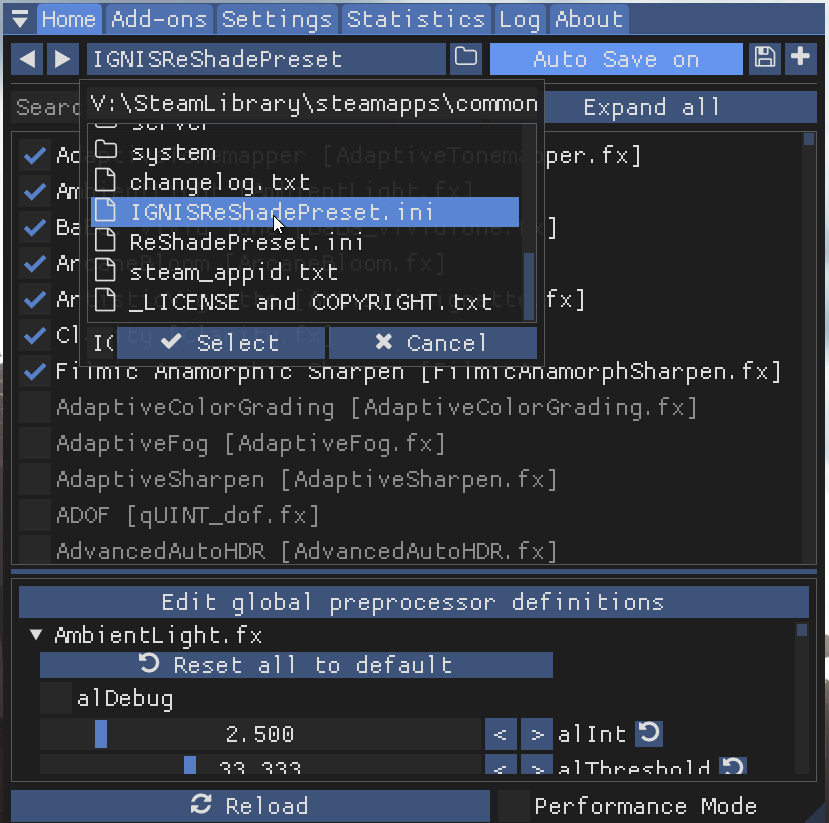
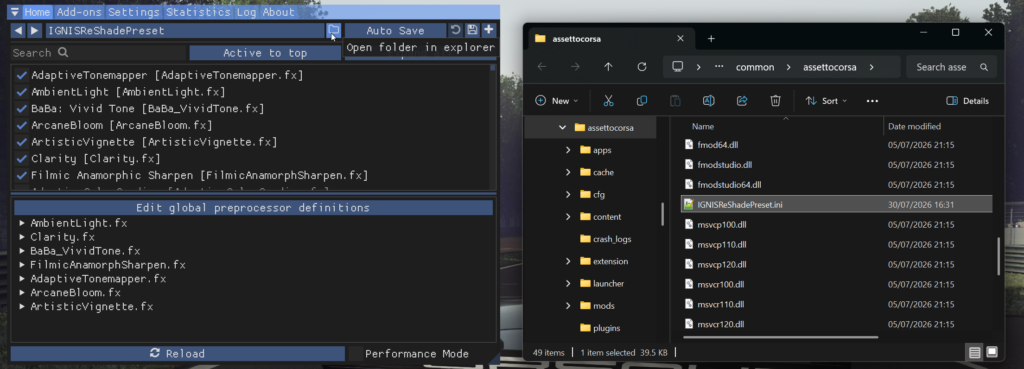
ReShade: whilst in-game, press Home to open the overlay, then use the preset selector to load ReShadePreset.initial.
Enable or disable the Auroras
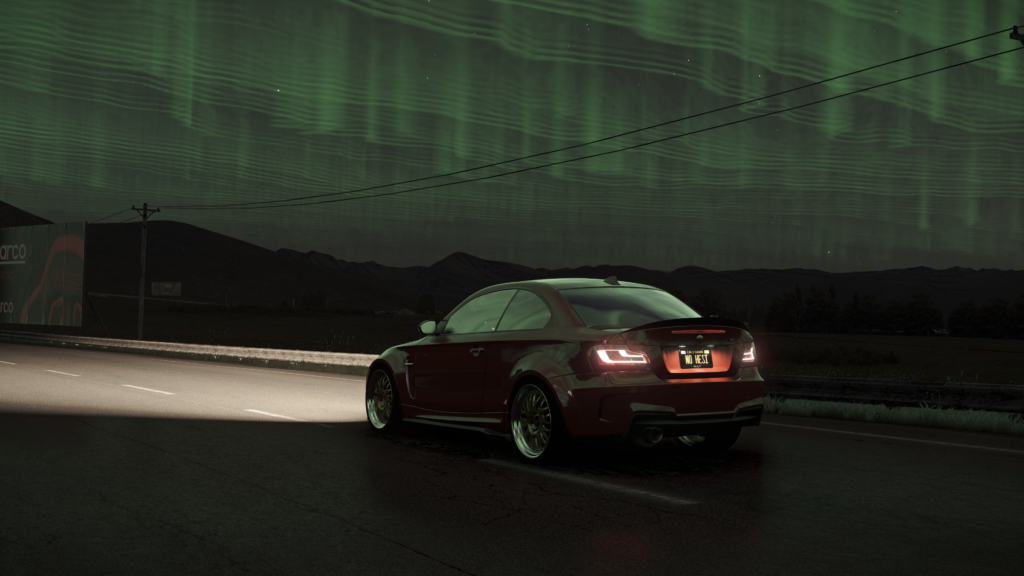
The Auroras effect allows you to see the Northern Lights at night; it is already enabled by default once the pack’s Pure configuration has been loaded. If you wish to enable or disable it yourself:
- Whilst in-game, open the Pure Config app.
- Go to Pure Config > Shaders > Aurora.
- Simply tick or unpick the active box.
- Then click save
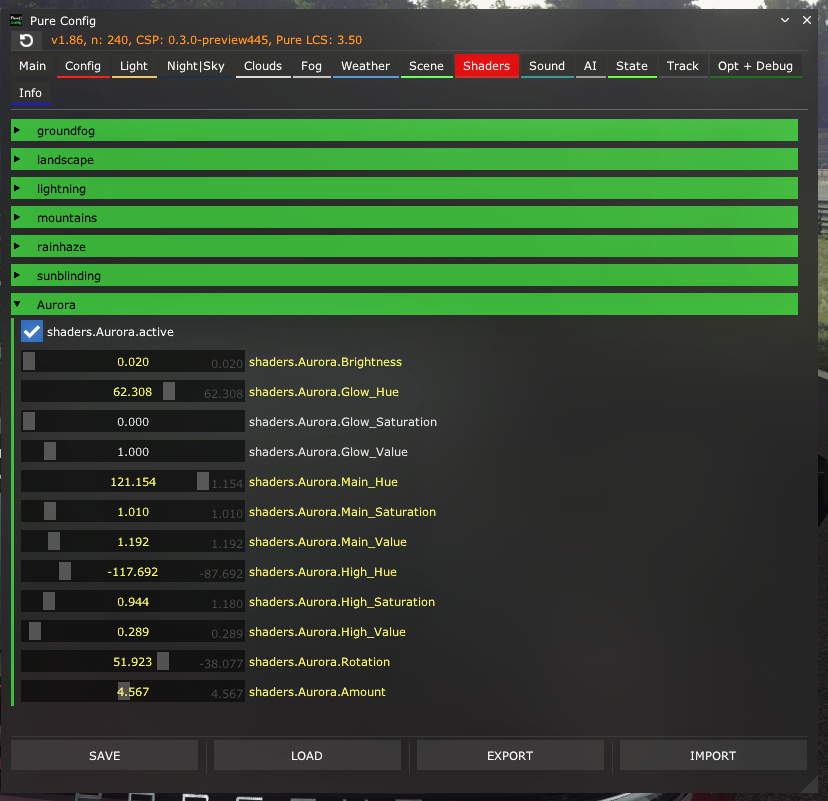
Do not change any of the other settings in this section; they are already calibrated in the configuration supplied with the pack. If you happen to change a setting by mistake, click Load – this will reload the settings applied to the Pure configuration.
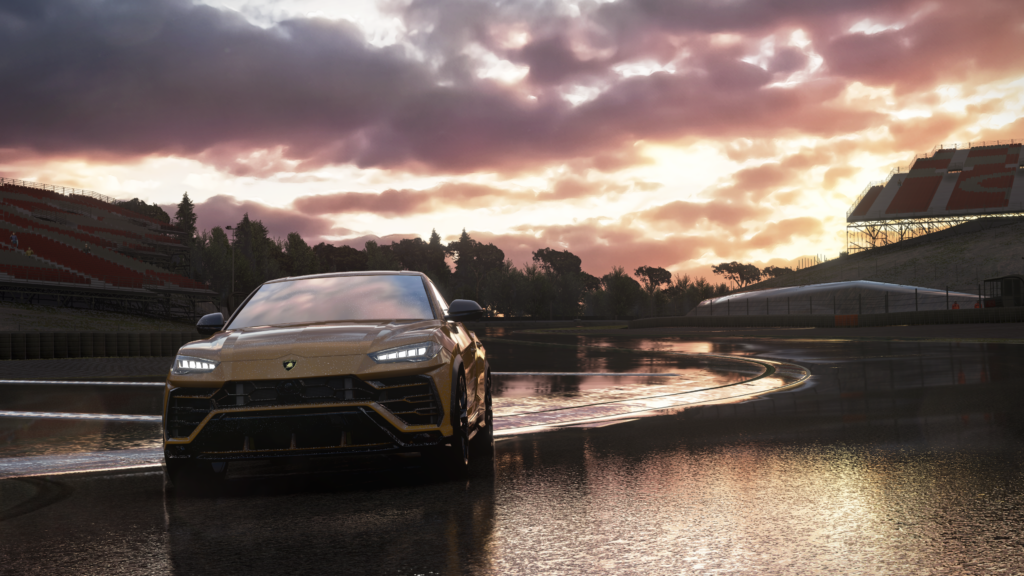
If you’ve followed all these steps correctly, your pack is now properly installed, enjoy your new graphics!
DIscover others Assetto Share’s tutorials :