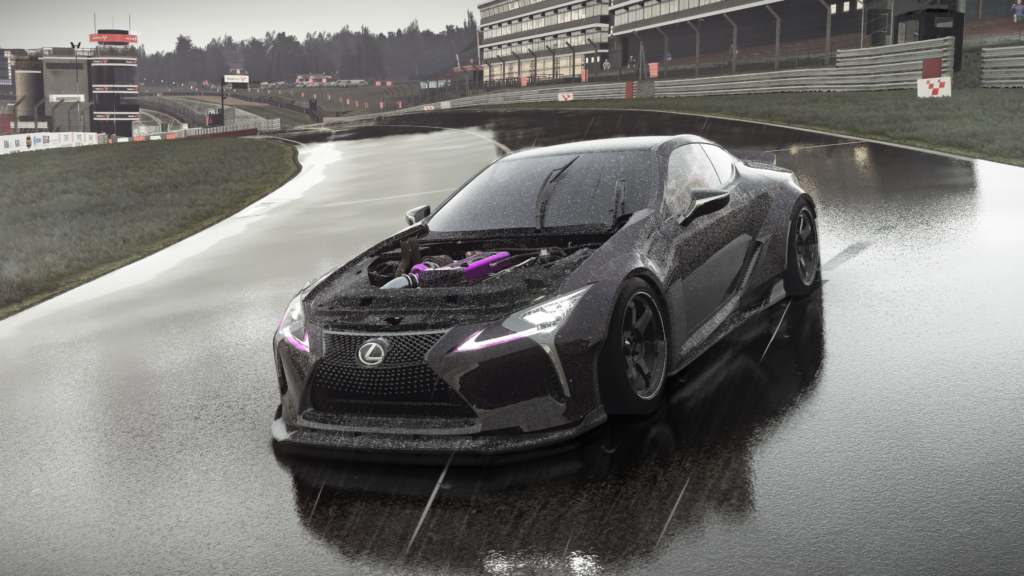
What is Pure?
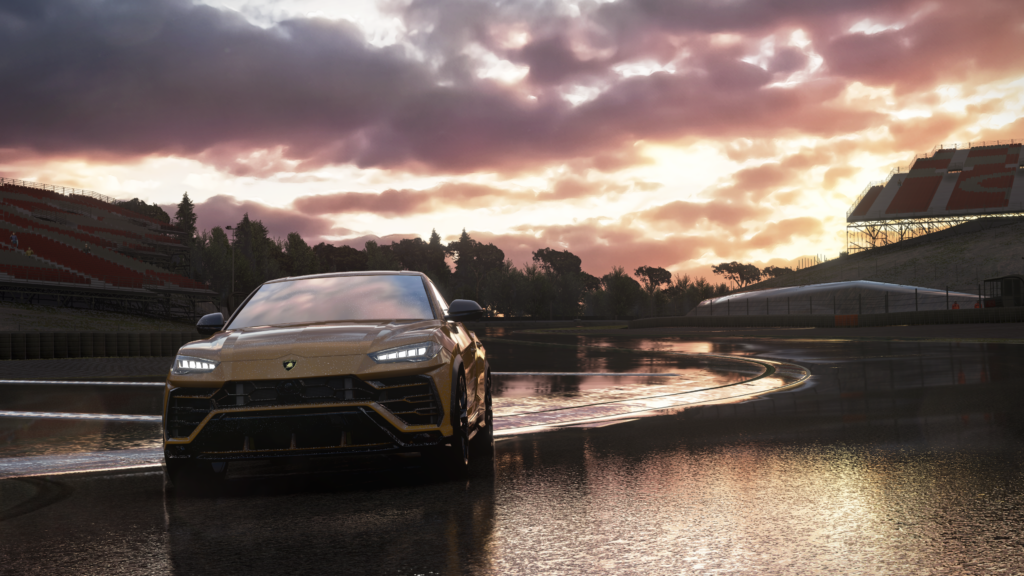
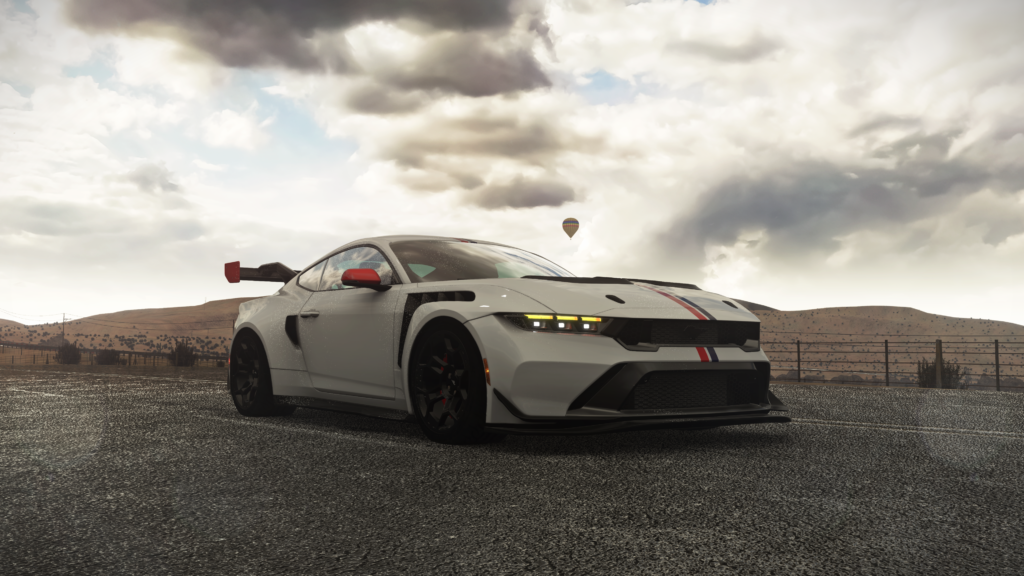
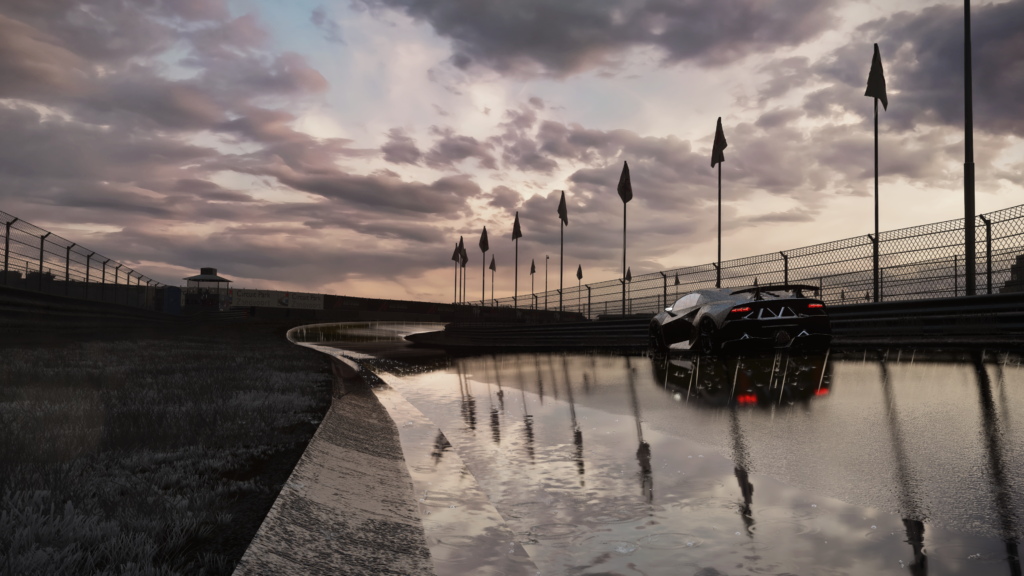
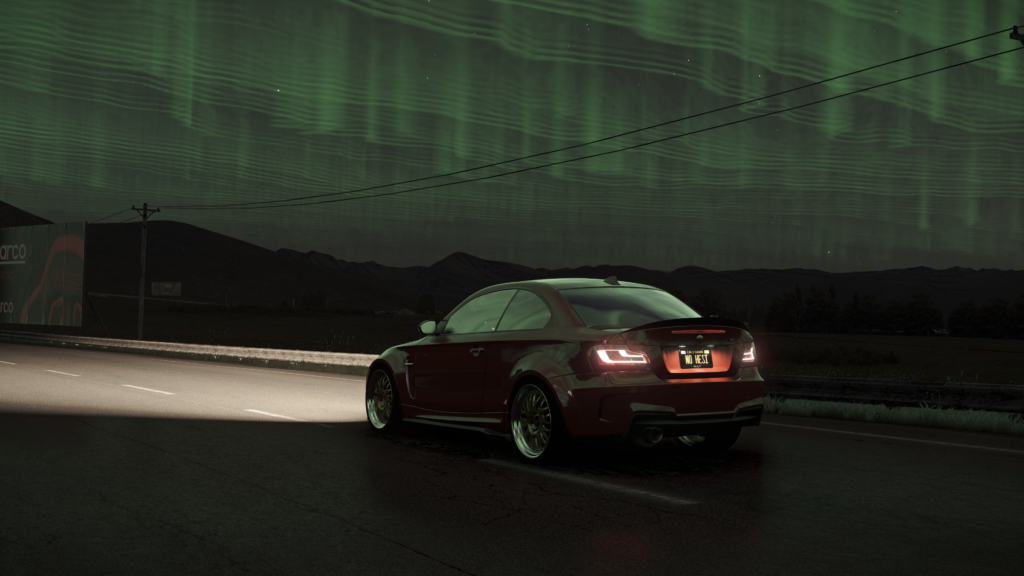
A post-processing and weather mod developed by Peter Boese, which relies on the pre-installed CSP. It adjusts colours, exposure and lighting to give the game its cinematic look. It is what gives this site’s graphics pack its visual identity. In this tutorial, you’ll learn how to install Pure.
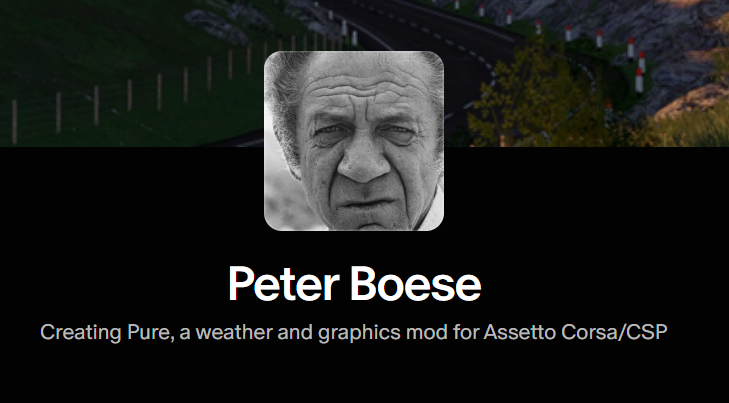
How to install Pure, Step 1: Download Pure from Peter Boese’s Patreon
- Go to patreon.com/peterboese.
- Sign up as a member (subscription from around $1.50/month) to unlock access to the files.
- In the posts, find the one corresponding to the latest version of Pure (often named “Pure X.XX” or mentioning “Pure LCS”) and download the attached ZIP file.
How to install Pure, Step 2 : Extract the files from the ZIP file
Do not drag and drop the ZIP file (or the extracted folder) into the Content Manager window: Pure must be placed directly into the game files, not installed as a mod via the CM interface. Here’s how to do it, in detail:
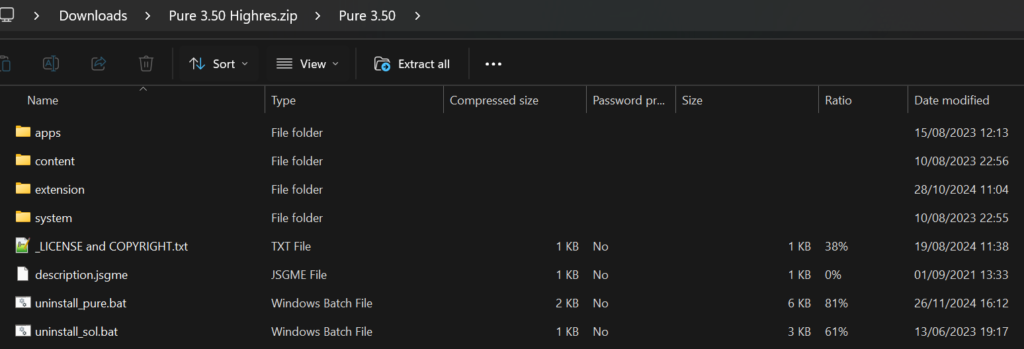
Extract the downloaded ZIP file. Right-click on it in Windows File Explorer, then select extract All…’ (or use 7-Zip/WinRAR if you have them). Choose a folder that’s easy to find, such as your Desktop. You’ll end up with a new folder containing the Pure files.
Open this extracted folder. Inside, you should see one or more folders with the same names as those used by Assetto Corsa: apps, content, extension, system. Don’t worry if you don’t recognise all these names — the important thing is to copy the entire contents of this folder, without extracting a single file.
How to install Pure, Step 3 : Drag the files into the game
Open a second Windows Explorer window and navigate to the Assetto Corsa installation folder. By default, the path is: steam apps\common\assettocorsa. If you can’t find it, you can check the exact path in the Content Manager, via Settings > General, where the game folder is listed.
Arrange the two windows side by side so that you can clearly see both folders at the same time. The folder extracted from Pure on one side, and the assettocorsa folder on the other (handy shortcut: Windows key + left arrow for one window, Windows key + right arrow for the other).
Select all the contents of the folder extracted from Pure (shortcut: Ctrl+A), then drag and drop them (or copy using Ctrl+C, then paste using Ctrl+V) directly into the assettocorsa folder.
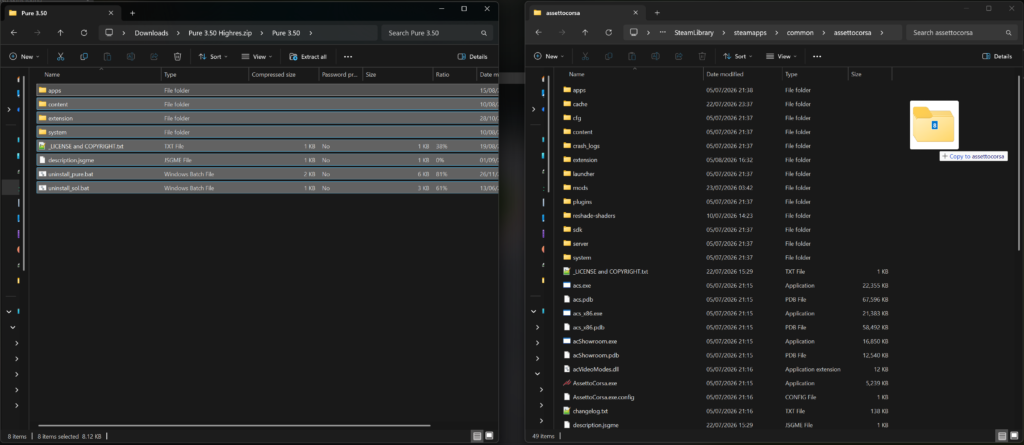
A Windows dialogue box will appear, as folders with the same names already exist (created by the CSP). It will ask if you want to replace the files. Select the option replace files in the destination (or merge folders, depending on your version of Windows) — never skip these files. It is this step that allows the Pure files to be added to those already in place.
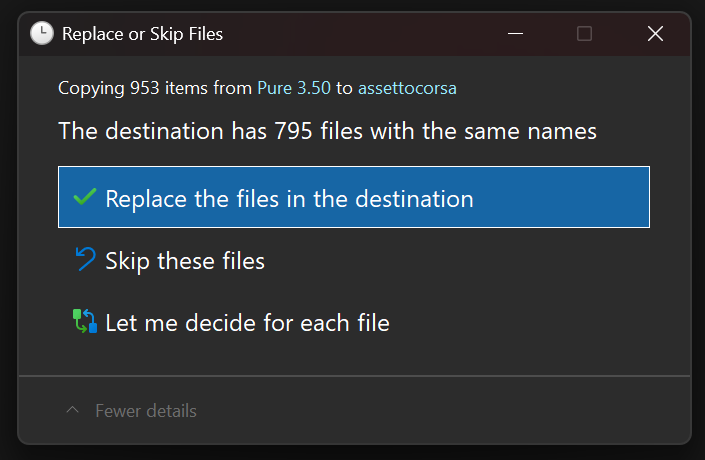
Wait for the copy to finish (a few seconds to a minute, depending on the number of files).
Check that everything has been copied correctly: open the assettocorsa\extension folder; you should see new files or folders with names containing ‘Pure’. If this is the case, the installation was successful.
How to install Pure, Step 4 : Enable Pure as WeatherFX
This is an important part of the process to know how to install Pure.
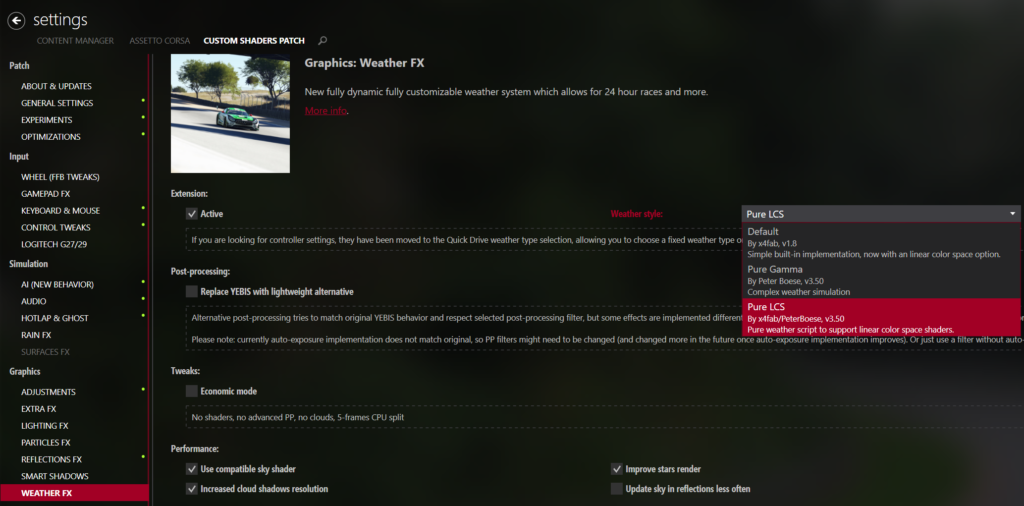
- In Content Manager, go back to Settings > Custom Shaders Patch.
- Find the WeatherFX section.
- Select Pure LCS or Pure as the active weather style. You can also do this on the CM home screen.
- Start a game session to check that the lighting and colours have changed.
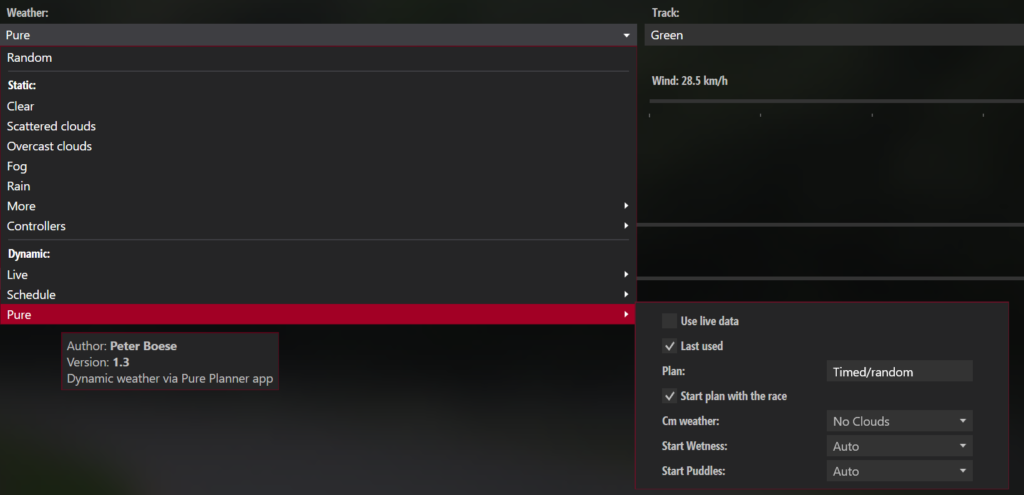
How to install Pure, Step 5 : Check that Pure is working in-game
Now that you know how to install Pure in the Assetto Corsa files and how to enable it, you need to learn how to use it in the game.
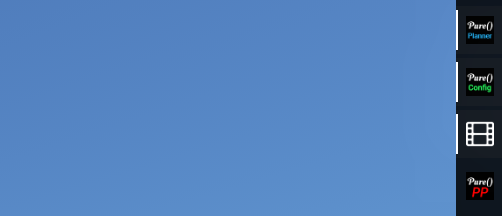
- Launch Assetto Corsa via the Content Manager and hit the track in any car.
- Open the Pure Config app from the side app bar (or the in-game app menu).
- Check that a version number is displayed at the top of the panel (for example, “v0.54”), along with a reference to the CSP — this confirms that Pure is recognised and active, not just copied into the files.
- Take a look at the sky and the general lighting: Pure already imposes its own default atmosphere, which is visibly different from the original Assetto Corsa rendering (softer colours, different exposure), even without a custom configuration loaded at this stage.
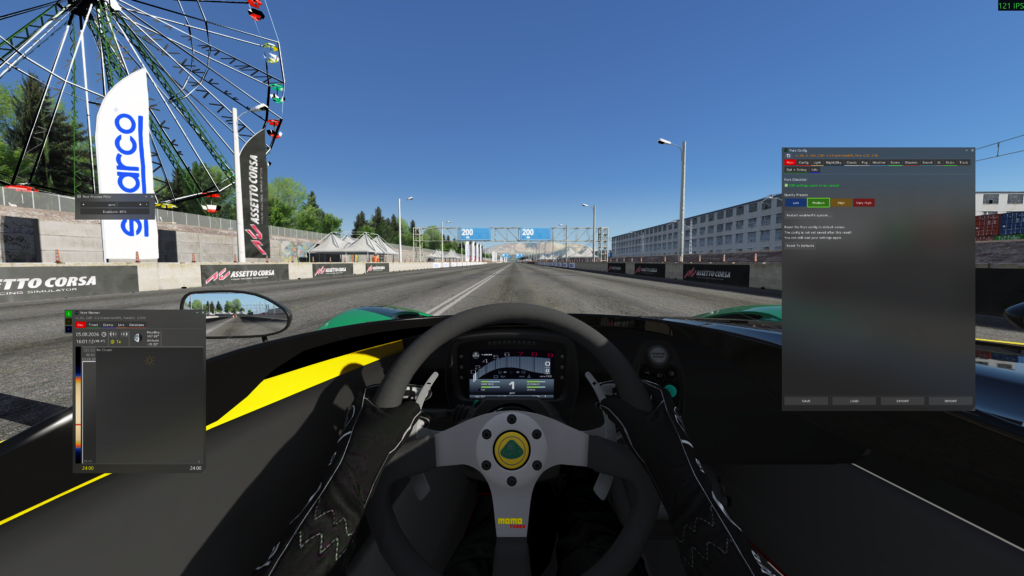
If the Pure Config app does not open, displays an error, or if no visual changes are noticeable compared to the default theme: the most common cause is an incomplete merge in step 2 — go back and check that the ‘apps’, content, extension and system folders from the ZIP file have actually been copied (and not simply left alongside) into the assettocorsa folder.
Final tips
As with CSP, you can pay for a month’s subscription with Peter Boese, download the version, and then cancel your subscription: you’ll keep the downloaded version, but won’t receive future updates.
Uninstall any old versions of Pure (or Sol, an older weather mod) before installing a new version, to avoid file conflicts.
Check that your version of CSP is compatible with the installed version of Pure — the minimum requirement is usually specified in the relevant Patreon post.
Now you know how to install Pure !
Discover others Assetto Share’s tutorials :